

1. Open Swap Commerce Integration
Navigate to the Swap Commerce integration settings within the Pimento dashboard.
2. Copy Webhook URL
Copy the webhook URL exactly as shown on the settings page. Copying this incorrectly will result in no orders being downloaded.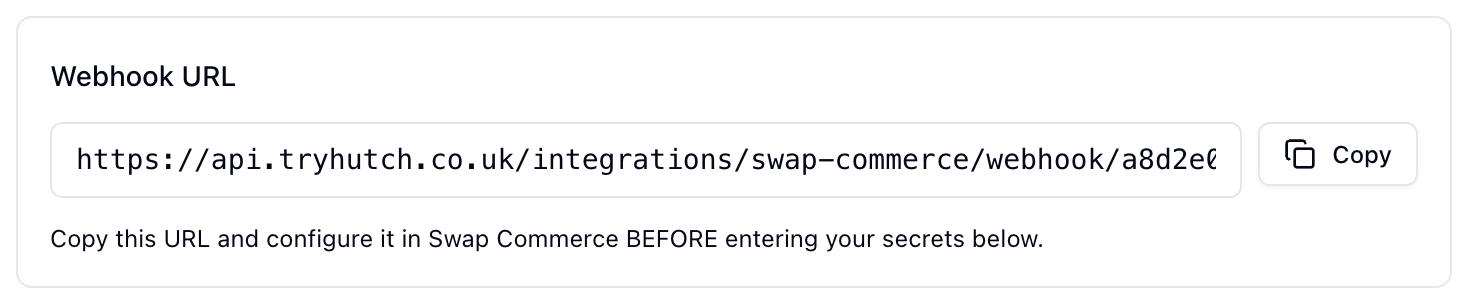
3. Configure Webhook in Swap
- Navigate to Integrations in your Swap dashboard
- Click New webhook
- Give it a name (e.g., “Hutch Returns”)
- Paste the webhook URL from above
- Select the Return event
You will need to create two separate webhooks: one for create events and one for update events.
- After creating the webhook, copy and save the Webhook Secret shown
4. Generate Returns QC API Key
- Go to Returns → Quality Control Settings in Swap
- Enable Quality Control
- Click Generate API Key
- Copy the token from the popup
5. Configure Swap Settings
To ensure returns sync correctly between Pimento and Swap, you need to configure the following settings in Swap:Automatic Updates
Set updates to Automatic to ensure completed returns show as complete within Swap.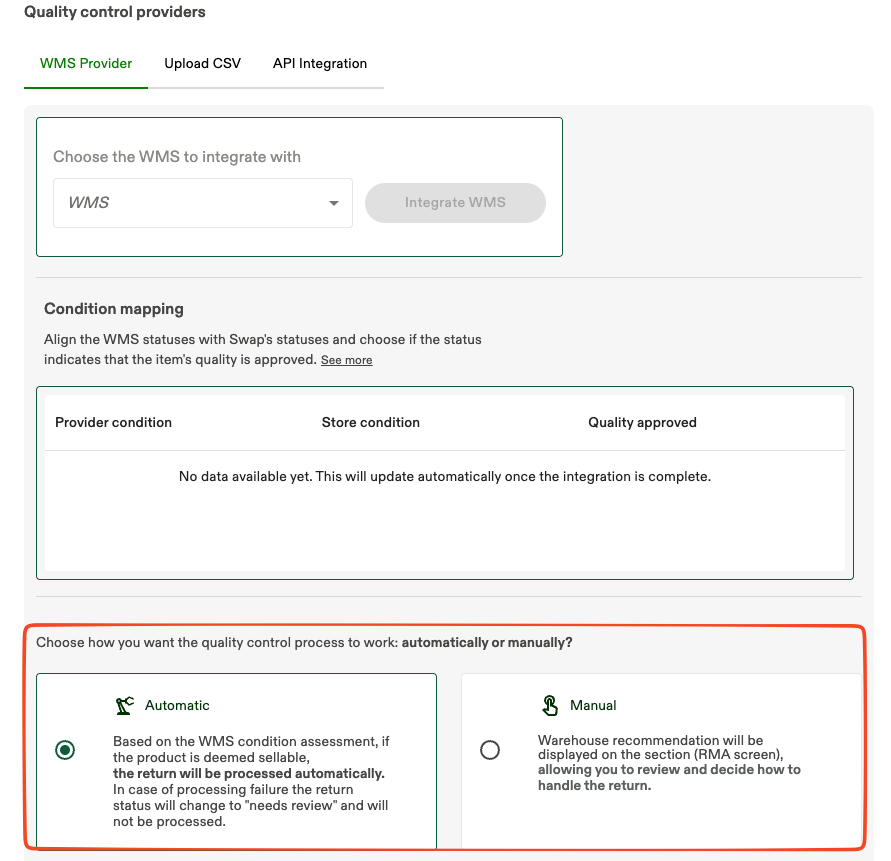
Sellable/Unsellable Actions
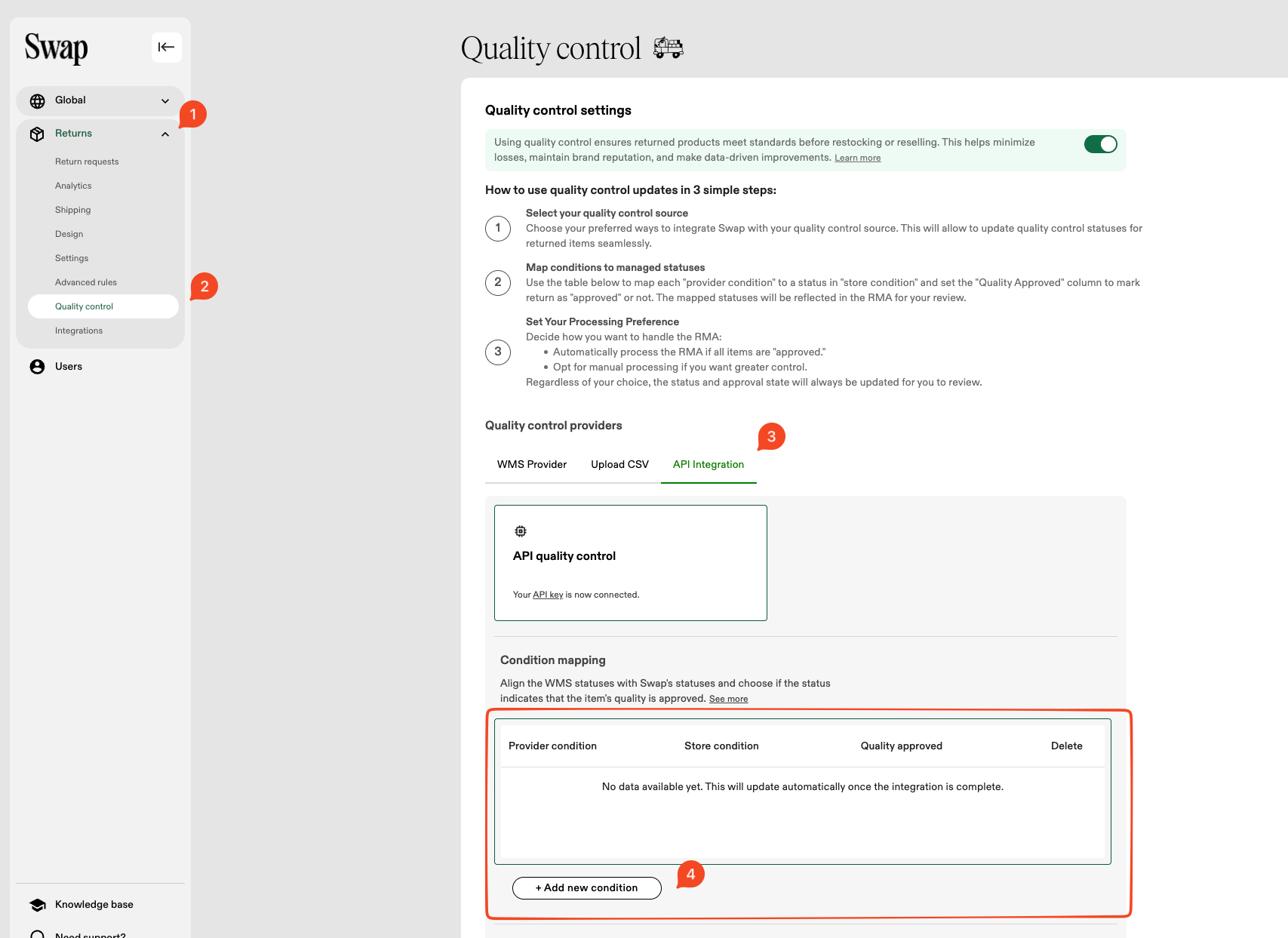
Configure sellable and unsellable actions to ensure items correctly get passed to Swap. You will need to create one action for each: Sellable Action:- Provider condition →
sellable(lowercase) - Store condition →
Sellable - Quality approved →
Yes
- Provider condition →
unsellable(lowercase) - Store condition →
Damaged - Quality approved →
No
6. Complete Integration
- Enter the Webhook Secret from Step 3
- Enter the QC API Key from Step 4
- Click Connect Integration

Make sure you have completed Step 5 to configure the required Swap settings (Automatic Updates and Sellable/Unsellable Actions) to ensure returns sync correctly.