

- Controlling access to sensitive information
- Clearly defining responsibilities
- Improving operational efficiency
- Enhancing security and compliance
- Tracking accountability
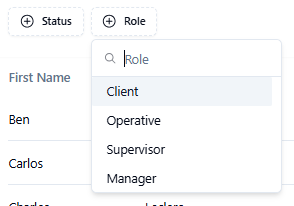
- Operative - Operative users can pick, pack and ship orders, process stock, process returns and other warehouse floor tasks.
- Supervisor - Can access most platform areas except billing and finance.
- Manager - All unrestricted access to all areas of the platform, including billing and finance.
- Navigate to the “Users” tab

- Click on the “Add User” button in the top right corner

- Fill out all required fields (marked with *)

- Click “Create User”. The user will now be created

- To change a user’s role, follow the steps in the “How to Set Up Users section” to recreate the user with the new role
- Go to the “Users” tab
- Locate the user. If two roles are assigned, click the “Bin” icon next to the role you wish to remove

- Navigate to the “Users” tab
- Find the user whose account you want to disable
- Click the ”…” under the Actions column
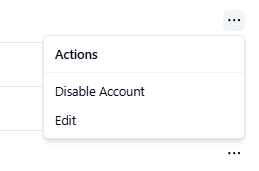
- Select Disable Account. The user will no longer have access to the platform.
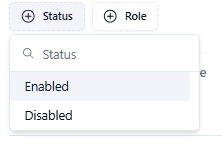
- Filter users by “Enabled or Disabled” status using the Status filter
- Filter users by their role using the “Role filter”
- Use the search bar to locate a user by First Name, Last Name, Phone Number, or Email

- Download a CSV of all users by clicking the “Download Icon”
